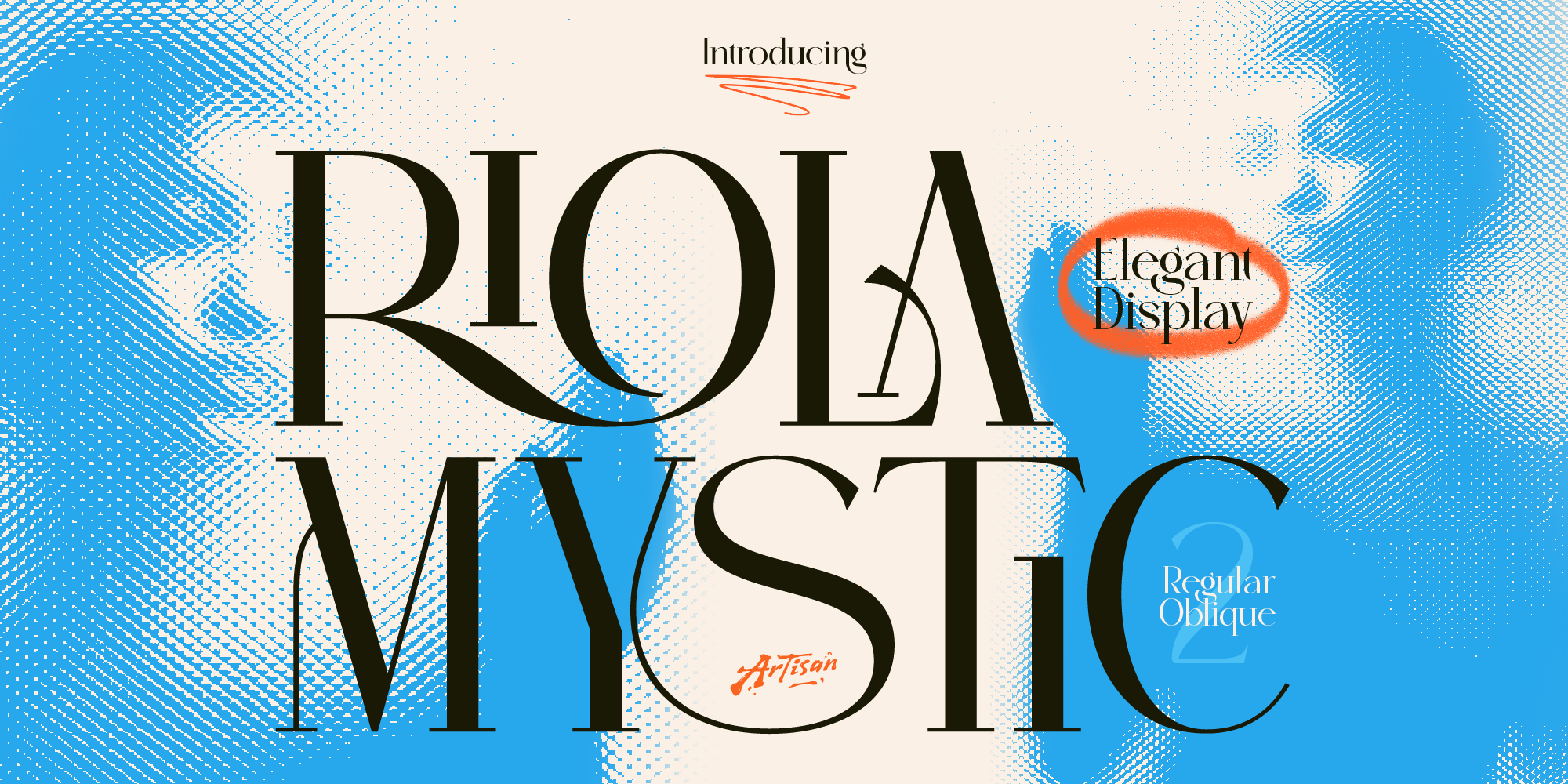
Why You Need a Mystic Elegant Display Font for Your Brand
Elevate your brand identity with a mystic elegant display font. Discover how Riola brings celestial luxury to skincare, tarot, and boutique logos.
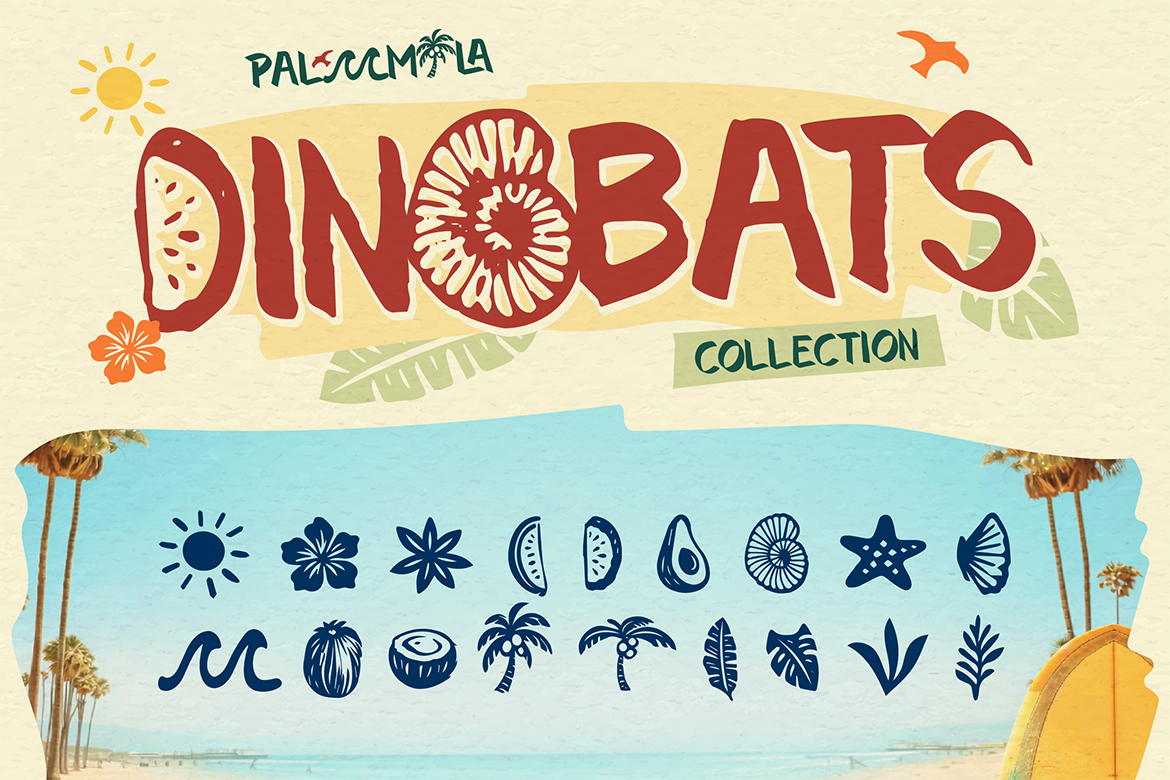
Most designers install a premium font, type their headline, and move on. But inside that font file lives a whole second layer — alternate characters, flowing ligatures, decorative swashes, ornamental dingbats — that most people never find. Here’s how to unlock all of it, in every major tool.
Premium fonts ship with OpenType features — a standard that allows a single font file to carry hundreds of extra glyphs and smart substitution rules. Think of it as bonus content bundled inside the file you already bought. Here’s what these features actually are:
Alternative designs for specific letters — a different ‘g’, a more ornate ‘A’, or a simplified ‘y’. Same character, different personality.
Two or more letters that merge into a single glyph when placed together — like ‘fi’, ‘fl’, or ‘th’. Makes text feel polished and intentional.
Decorative extensions on letters — flourished tails, extended serifs, or dramatic entry strokes. Used sparingly for headlines and titles.
Decorative symbols, dividers, stars, and flourishes that match the font’s visual style — perfect for borders, headers, and layouts.
Oldstyle figures, tabular numerals, superscripts, and built fractions — the difference between text that looks typeset and text that looks typed.
Uppercase letterforms scaled and redrawn to match the x-height of lowercase letters — far more elegant than just shrinking capitals manually.
A ligature isn’t a workaround — it’s the font doing exactly what it was designed to do.
Illustrator has the best OpenType support of any design tool. Almost every feature is accessible through two panels:
Go to Type → Glyphs. This shows every single character in the font — alternates, ornaments, dingbats, ligatures — organized in a scrollable grid. Double-click any glyph to insert it at your cursor.
Use the dropdown in the Glyphs panel to filter by category: Ligatures, Swashes, Stylistic Alternates, Ornaments, and more. This makes it easy to browse just the decorative characters.
Open the OpenType panel (Window → Type → OpenType). Here you can toggle Ligatures, Swashes, Titling, Stylistic Sets, and Fractions on or off for selected text — Illustrator applies the substitutions automatically.
Many Artisan Fonts include numbered Stylistic Sets (ss01, ss02…). In the OpenType panel, click the Stylistic Sets button to cycle through them. Each set activates a different design variant across the entire selected text.
Pro tip — Illustrator
In the Glyphs panel, hover over any character and a small triangle appears in the corner — that means alternate versions exist. Click and hold to see all variants in a popup, then release on the one you want.
Go to Window → Glyphs. Same grid view as Illustrator — browse and double-click to insert. Filter using the category dropdown at the top.
Open Window → Character, then click the flyout menu (top-right ≡ icon). You’ll find options for Standard Ligatures, Discretionary Ligatures, Swash, Stylistic Alternates, Titling Alternates, and Fractions — toggle each individually.
Select a character in your text layer, then look at the Glyphs panel — it will automatically highlight that character and show all of its available alternates at the top of the panel.
Go to Type → Glyphs. InDesign’s Glyphs panel is the most powerful of the three Adobe apps — you can search by Unicode value, filter by category, and save frequently used glyphs to a custom set at the top.
Go to Window → Type & Tables → OpenType. Toggle every available feature for selected text. InDesign shows only the features the current font actually supports — no greyed-out options.
In InDesign, you can apply OpenType features at the paragraph style level — meaning every headline in your document automatically gets ligatures and swashes without manual intervention. Set it once in your Paragraph Style → Advanced Character Formats → OpenType Features.
Select a text layer, then in the right panel under Typography, click the three-dot ··· icon next to the font name. This opens Type Settings — where all OpenType features live.
Figma dynamically shows only the features your font supports — Ligatures, Discretionary Ligatures, Stylistic Alternates, Fractions, Ordinals, and Stylistic Sets (ss01–ss20). Toggle them on and off with a single click.
Figma doesn’t have a native Glyphs panel. To insert a specific ornament or dingbat, find it first in a font viewer like fontdrop.info or your OS character map, then copy-paste the Unicode character directly into Figma.
Canva does not have an OpenType panel or Glyphs browser. For fonts uploaded to Canva, only standard characters are accessible directly through the keyboard.
Open fontdrop.info in your browser and drag your font file onto it. It renders every glyph including alternates and ornaments. Select and copy any glyph, then paste it directly into Canva — it will render correctly as long as the font is also uploaded there.
On Mac, open Font Book and select the font — you can browse all glyphs and copy them. On Windows, use Character Map (search in Start) and filter by font name.
Quick tip — Canva users
If you rely on Canva for most of your work, consider doing your initial layout exploration in Figma (free) where OpenType access is much smoother — then export assets back into Canva for final production.
| Feature | Illustrator | Photoshop | InDesign | Figma | Canva |
|---|---|---|---|---|---|
| Ligatures | ✓ Auto | ✓ Auto | ✓ Auto | ✓ Toggle | Workaround |
| Stylistic Alternates | ✓ Panel | ✓ Panel | ✓ Panel | ✓ Toggle | Workaround |
| Swashes | ✓ Panel | ✓ Panel | ✓ Panel | Varies | Workaround |
| Glyphs Browser | ✓ Full | ✓ Full | ✓ Full | Not available | Not available |
| Stylistic Sets | ✓ Panel | Limited | ✓ Panel | ✓ Toggle | Workaround |
| Fractions | ✓ Auto | ✓ Auto | ✓ Auto | ✓ Toggle | Workaround |
| Small Caps | ✓ Panel | ✓ Panel | ✓ Panel | Varies | Not available |
OpenType features are added by the type designer — they’re not automatic. A font with 800+ glyphs is likely packed with alternates, ligatures, and ornaments. A more minimal typeface might only include standard ligatures and a few stylistic sets.
On every Artisan Font product page, the preview section shows the full character set. Before you buy, scroll through it — you’ll see exactly which features are included. If you want swashes and ornaments specifically, look for fonts with a larger glyph count in the product description.
Final tip
Less is more with decorative features. A single swash on a headline initial, or one ornamental divider between sections, reads as intentional. Using swashes on every letter reads as noise. Let the feature do the work — then get out of its way.
Browse the full Artisan Font collection — every product page shows the complete glyph set before you buy.
Why You Need a Mystic Elegant Display Font for Your Brand
Elevate your brand identity with a mystic elegant display font. Discover how Riola brings celestial luxury to skincare, tarot, and boutique logos.
3 Spooky Halloween & Dark Fantasy Fonts
October is close enough that anyone doing seasonal design work should already be building their font shortlist — party flyers, product drops, packaging, social campaigns.
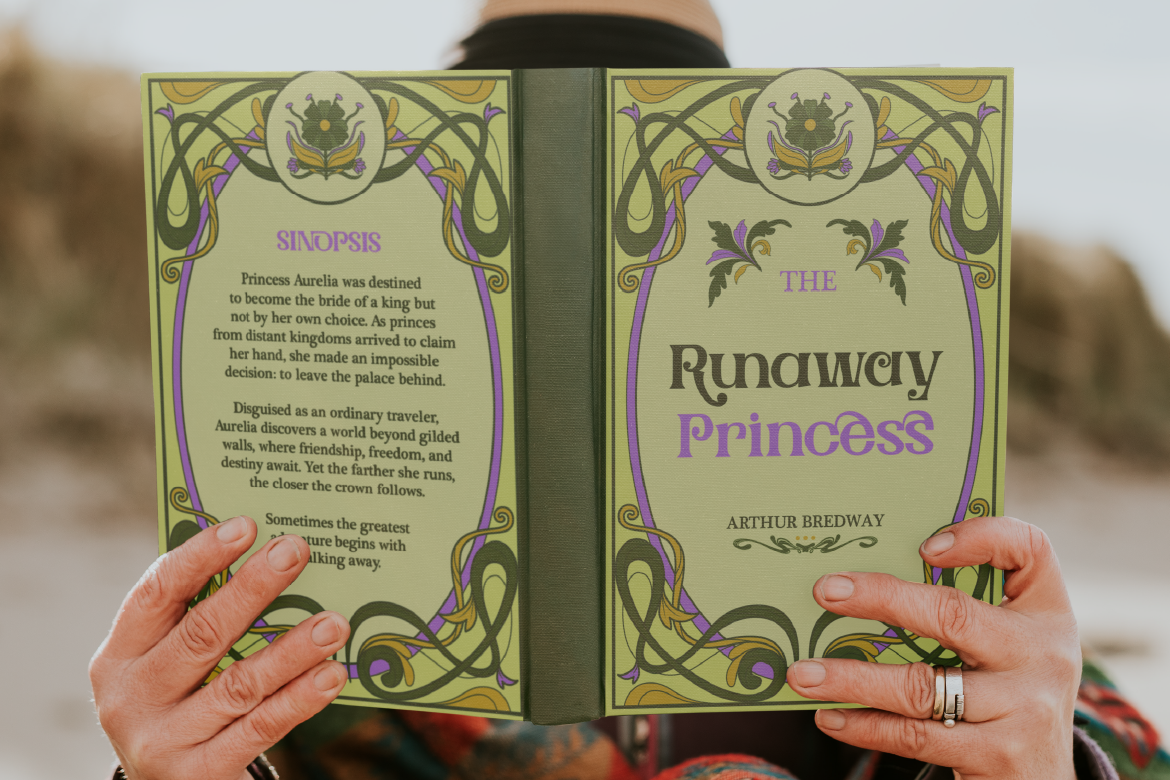
3 Retro & Vintage Fonts for Nostalgic Branding
70s psychedelic swagger, old-world Art Nouveau elegance, and a smooth vintage script-sans duo — three fonts built for brands with a nostalgic streak.